All features

Cloudesk CRM

Every customer and every deal, in one place.

A CRM your whole team can pick up in an afternoon. Leads arrive by themselves from your website forms, store, counter, bookings, restaurant and invoices. Drag deals across a pipeline, log calls and emails, never miss a follow-up, and see exactly what will close this month.

CRM on a phone

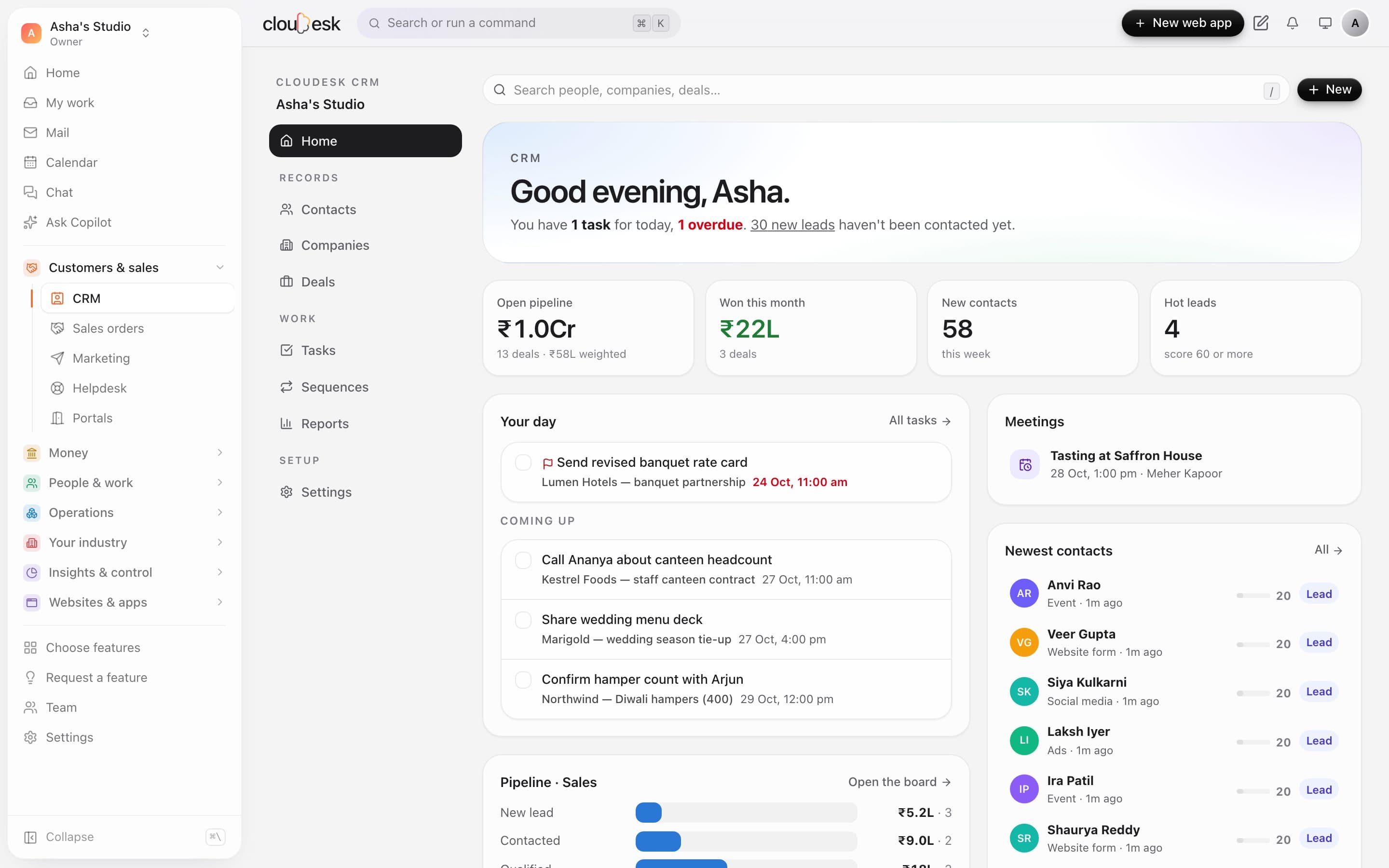
Real screenshots from Cloudesk CRM, using a demo workspace with demo contacts and deals; the first 55 contacts were brought in from its bookings, forms and invoicing clients.

How it works

Three steps, no surprises

  1. 1

    Bring everyone in

    One click brings in every customer already in Cloudesk — store and counter buyers, bookings, restaurant guests, invoicing clients and form entries. Or import a spreadsheet; columns are matched for you.

  2. 2

    Work your pipeline

    Add deals, drag them from stage to stage, and log every call, email and meeting on the person's timeline. Tasks and reminders keep the next step on someone's list.

  3. 3

    Let follow-ups run

    Put new leads into a sequence — an email today, a call task in two days, a check-in next week — and watch the reports for what's working.

The tour

Every tool, up close.

  1. 01Lead capture

    Leads come in by themselves.

    Website forms, online and counter orders, bookings, restaurant guests and invoicing clients become contacts the moment they happen — matched by email or phone, so the same person is never added twice. For any other form or ad, there's a lead link.

    • Switch each source on or off
    • Assign to one person or take turns
    • Email the owner when a new lead arrives
    • A ready-to-paste HTML form
    Lead capture settings: sources from across Cloudesk and the web-to-lead link
  2. 02Contacts

    The right list, one click away.

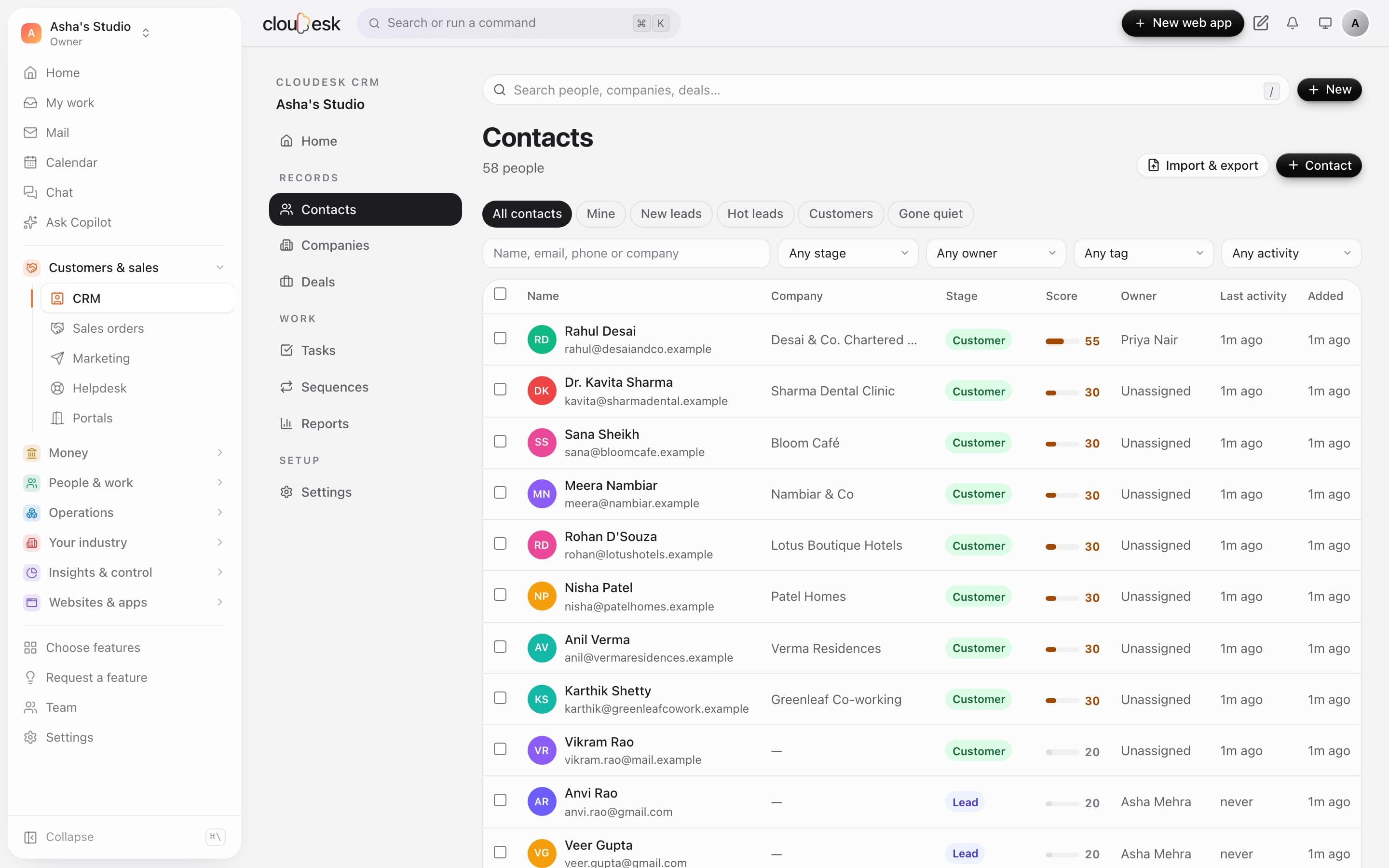
    Ready-made views — mine, new leads, hot leads, customers, gone quiet — plus your own saved views. Filter by stage, owner, tag and last activity, and sort by score.

    • Search names, emails, phones and companies
    • Save a view for yourself or the team
    • Export exactly what you're looking at
    Contacts with stage, lead score, owner and last activity
  3. 03Bulk actions

    Change one, or everyone matching.

    Tick a few people — or every contact matching your filters — and assign an owner, change their stage, tag them, or put them into a sequence in one go.

    • Assign, stage, tag and lead status
    • Add hundreds to a sequence
    • Merge duplicates
    Three contacts selected, with Assign, Stage, Tag and Sequence actions
  4. 04One person, everything

    Their whole story on one page.

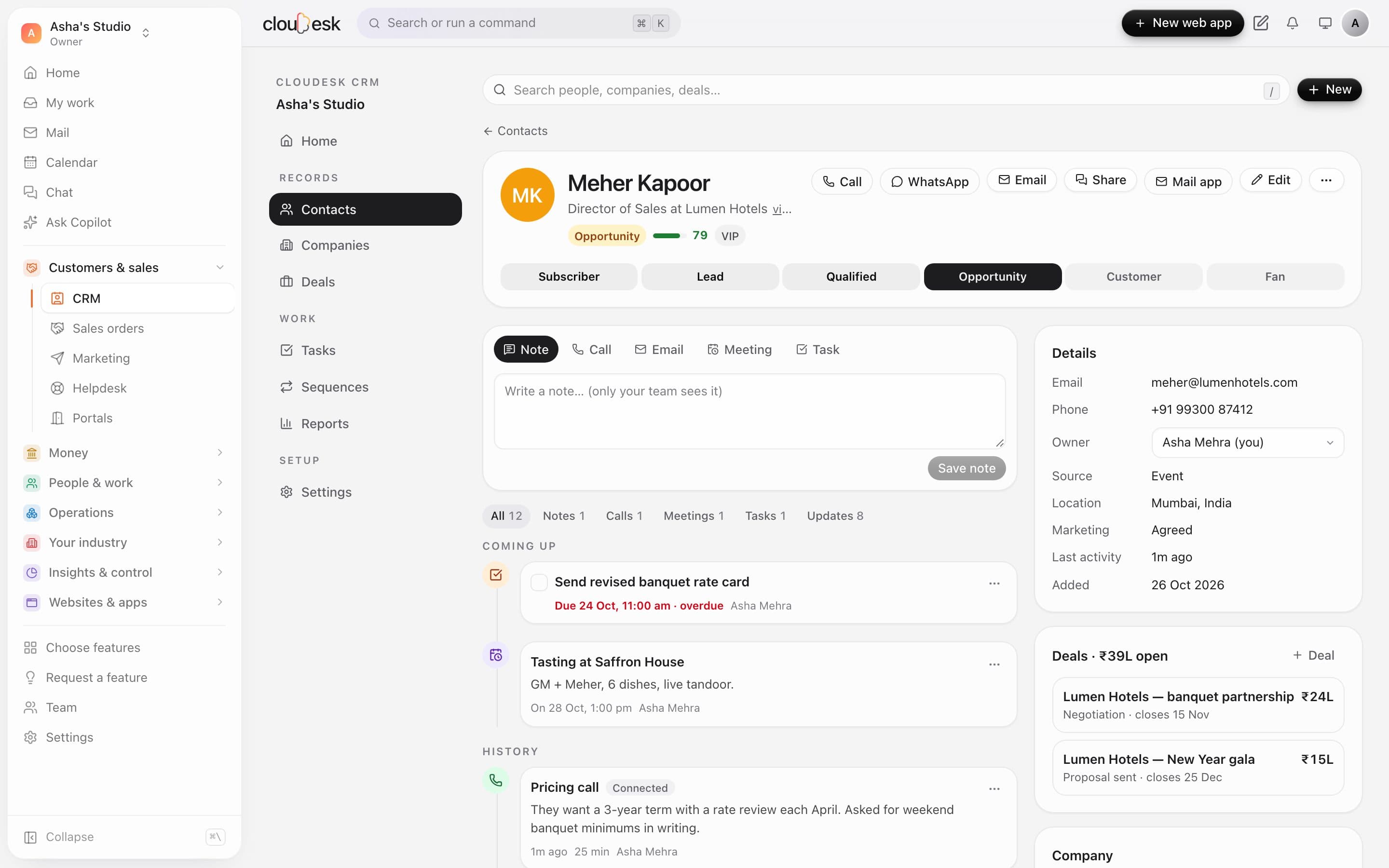
    Details, lifecycle stage, lead score, deals and company beside a timeline of every call, email, meeting and note. And what they've bought, booked or been invoiced for anywhere in Cloudesk — with what they've paid you.

    • Click a stage to move them along
    • Call, WhatsApp or email in a tap
    • Spots likely duplicates and merges them
    Meher Kapoor's page: lifecycle stage, the timeline, details and deals
  5. 05Calls, emails, meetings

    Log it in seconds. Send it from here.

    Note, call, email, meeting or task from the same box. Calls keep their outcome and length; emails use your templates and merge fields and go out through your workspace's mail service, each with an unsubscribe link.

    • Templates with {{first_name}} and {{company}}
    • Meetings scheduled show on the home page
    • Talking to a new lead marks them contacted
    Writing an email from a template, with the notice that mail isn't set up in this demo workspace
  6. 06Pipeline

    Drag deals. Watch the forecast move.

    Each stage shows its total and the weighted value at its chance of winning. Drag a card to move it; deals that sit too long are flagged; and losing one always asks why.

    • Several pipelines with your own stages
    • Owner, close date and next task on every card
    • Won makes the contact a customer and ends their sequences
    The deal board with weighted totals per stage
  7. 07Deals

    Every deal knows its next step.

    The stage path, people, value and close date on top; the follow-ups and history below. Won and Lost are one tap — and the reason a deal is lost feeds your reports.

    • Days in the current stage
    • Custom fields for anything you track
    • Reopen a lost deal any time
    A deal page with its stage path, Won and Lost buttons, people and timeline
  8. 08Tasks

    Nothing slips through.

    Overdue first, then today, then what's coming. Tick them off from here or from the person's page. Managers can look at anyone's list.

    • Due today, tomorrow or next week in one tap
    • High-priority flag
    • Sequences add tasks for you
    Tasks: overdue, today and coming up, linked to their deal or person
  9. 09Sequences

    Follow-ups that run themselves.

    An email when they enquire, a call task two days later, a check-in after a week. Add people one at a time or a whole list; see where each one is.

    • Email and task steps, spaced in days
    • Stops on unsubscribe, do-not-contact or a won deal
    • Turn a sequence off any time
    A four-step sequence with the people in it and their next step
  10. 10Lead scoring

    Call the hottest leads first.

    Points for what matters to you — a work email, a phone number, a company, recent activity, an open deal, a tag or a source. Scores run 0 to 100 and update as people are contacted.

    • Your own rules, plus or minus
    • Hot leads view: score 60 and over
    • Rescored the moment you save
    Lead score rules with points for each signal
  11. 11Reports

    Know what will close this month.

    Won, win rate, average deal and sales cycle; pipeline by stage; a weighted forecast by month of expected close; why deals are lost; where leads come from and how they convert; and each person's calls, emails, meetings and results.

    • Any range, any pipeline
    • Indian financial-year view
    • Every number from real deals and activity
    Sales reports: win rate, pipeline by stage, forecast and the team
  12. 12Import

    Bring your spreadsheet. We'll match it.

    Excel, Google Sheets or another CRM saved as CSV. Columns like Full Name, E-mail, Mobile and Designation are matched for you; people already here are updated, not duplicated.

    • Owner and a tag for everyone imported
    • Custom fields too
    • Rows that can't go in are listed, with why
    Importing a spreadsheet: each column matched to a CRM field, with suggestions for the rest

In detail

What you get with Cloudesk CRM

Leads that arrive by themselves

Website forms, online and counter orders, bookings, restaurant guests and invoicing clients become contacts as they happen — matched by email or phone, never duplicated. A lead link takes forms from any other site or ad.

Good to know

We'd rather be upfront than surprise you later:

  • Email from the CRM goes out through the mail service set up for your workspace. Without one, emails are saved on the timeline but not delivered — the screen tells you which.
  • Replies aren't read back into the CRM yet; log them as notes, or use your mail app alongside it.
  • WhatsApp and calls open on your own phone (wa.me and tel: links); there's no built-in dialler or call recording.
  • Every email has an unsubscribe link; people who use it are marked do-not-contact and taken out of sequences.
  • There's no calendar sync with Google or Outlook yet — meetings live on the CRM timeline and home page.

Questions people ask

Do I need the store or a website to use it?+

No. The CRM works on its own. If you do use the store, bookings, Horeca or invoicing, their customers flow in automatically.

Will it make duplicates when someone buys and then books?+

No — people are matched by email, then by phone (the last ten digits, so +91 and 0 prefixes don't matter). If two records do slip in, the duplicate finder merges them with their whole history.

Can my sales team see only their own leads?+

Yes. Switch on “People see their own records” and members see what they own (and unassigned leads); owners and admins still see everything.

Can I bring my contacts from another CRM or Excel?+

Yes. Save it as CSV and import — columns like name, email, mobile, company and tags are recognised, and re-importing updates people instead of duplicating them.

How do website leads get assigned?+

To nobody, to one person, or in turns across the team (round-robin) — and the owner can get an email the moment a new lead fills in a form.

Works beautifully with

Give it a spin — it's free to start.

Next up: Cloudesk Accounts →

Start free