All features

Cloudesk Mail

All your business email, in one calm, smart inbox.

Connect Gmail, Microsoft 365, Zoho, Titan, Hostinger or any mail server in a few guided steps. New mail sorts itself — with the reason shown — new senders wait in a screener, and phishing tricks are flagged. Turn any email into a note, a meeting, a task or a chat message in one click, send the same email on a schedule, and read in full screen.

Mail on a phone

Real screenshots from the app, using a demo workspace.

How it works

Three steps, no surprises

  1. 1

    Type your email address

    We work out your provider from the address — even for your own domain, from its mail records — and fill in the server settings.

  2. 2

    Follow the guided steps

    Clear, provider-specific steps (with links) to turn on IMAP and make an app password — or sign in with Google or Microsoft where your platform offers it.

  3. 3

    Test, then it's live

    We check the connection live and explain any problem in plain words. Your recent mail syncs in, sorted and ready.

The tour

Every tool, up close.

  1. 01Connect

    Any mailbox, with steps made for it.

    Type your address and we work out the provider — even for your own domain, from its mail records. Then you get that provider's own steps, with links straight to the right settings page, and a live test before anything is saved.

    • Gmail, Microsoft 365, Zoho, Yahoo, iCloud, Titan, Hostinger, GoDaddy or any server
    • Tick off each step as you go
    • Problems explained in plain words
    Adding a Zoho mailbox: turn on IMAP, create an app password, each with a link to the settings page
  2. 02One inbox

    Every mailbox. Sorted before you look.

    All your mailboxes in one list, or each on its own. New mail lands in People, Finance, Updates, Promotions, Newsletters or Social, first-time senders are marked, and search understands from:, has:attachment, before: and more.

    • Unread counts per mailbox
    • Important, waiting for reply and follow-ups due
    • Keyboard shortcuts for everything
    The unified inbox with category tabs and new-sender badges
  3. 03In context

    The customer, beside their email.

    Open a conversation and the sender sits right at the top, with their CRM record. Add a sender to the CRM or turn the email into a Helpdesk ticket in one click, and tap the category to see why it landed there.

    • Open in CRM, with their deals
    • Make a helpdesk ticket
    • Mark VIPs so they always come first
    A customer's thread marked People and Important, with their CRM contact above it
  4. 04Safety

    Phishing tricks, called out in red.

    A display name that pretends to be someone else, a sender whose domain fails SPF, DKIM or DMARC, or replies going to a different domain — each is flagged with the reason. Remote images stay blocked until you choose to show them.

    • Look-alike names and domains
    • Failed sender checks
    • No tracking pixels by default
    A fake PayPal email flagged: the name doesn't match the sending domain and the sender checks failed
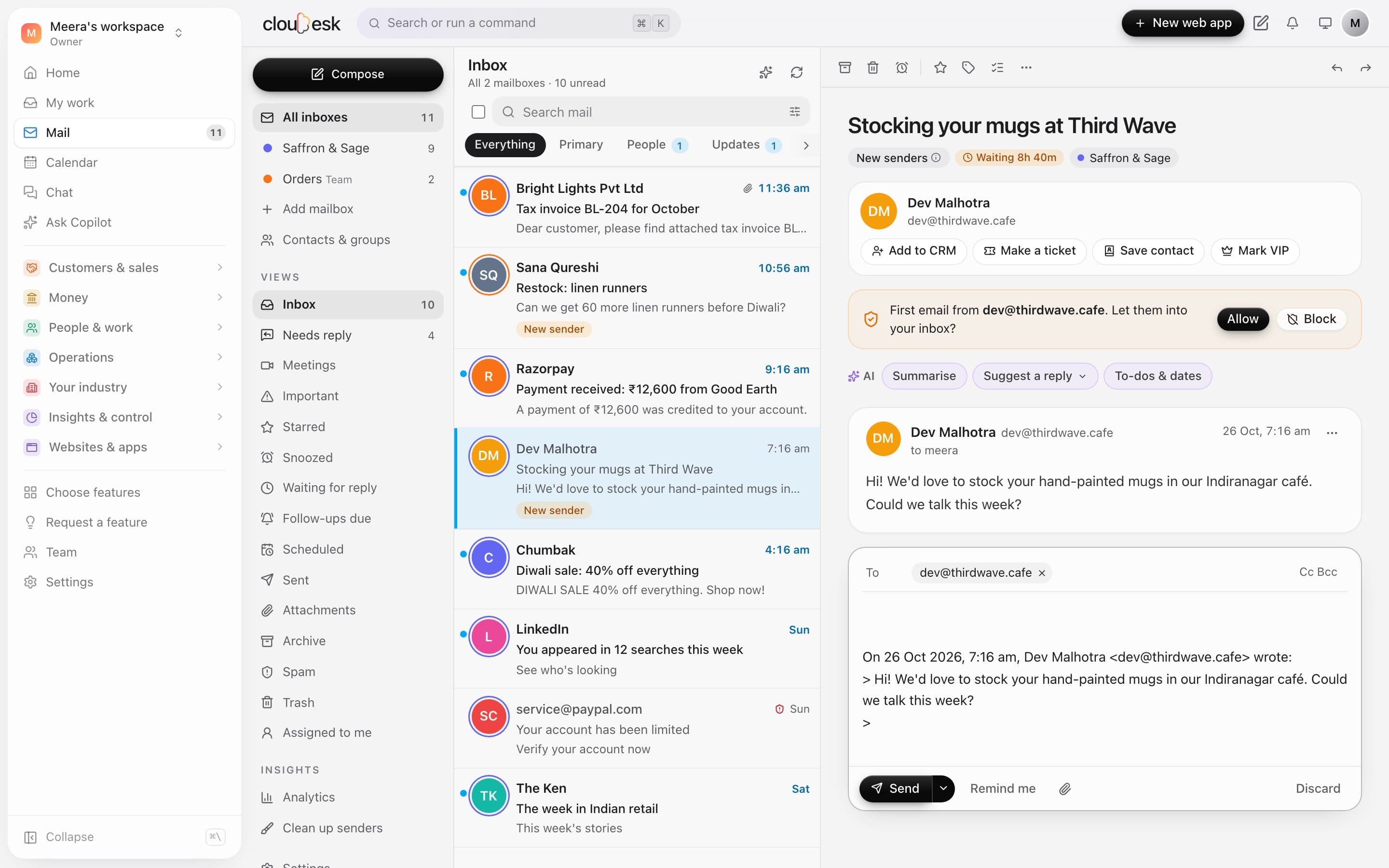
  5. 05Reply

    Screen, reply and follow up, in place.

    Let a new sender in or block them with one click. Reply right under the message, schedule the send, ask to be reminded if nobody answers, and undo a send for a few seconds.

    • Screener for first-time senders
    • Schedule send and undo send
    • Templates that fill in names
    Replying to a new sender inline, with the screener's Allow and Block above

Connected to everything

One email, everywhere it needs to go.

Save it to Notes, put it in your calendar, make it a task or hand it to your team in Chat — in one click, with the details filled in from the email. Everything it becomes links back to it.

AV

Asha Verma

asha@client.in · to you, Ravi

Send to

Launch plan for Diwali

Hi Meera, here's what we agreed:

• Final designs by Friday
• Ads go live on the 5th

Can we meet Thursday at 4pm to sign off? meet.google.com/abc-defg

Thanks, Asha

Connected 0

  • Everything this email becomes shows up here — and links back.
  1. 1Open any emailOr press n to save it to Notes straight away.
  2. 2Send to — or + Note, + Calendar, + Task, + ChatEach opens with the right details already filled in from the email.
  3. 3Connected, both waysThe email lists all it became; each of those opens the email again.

Recurring emails

Write it once. It goes out on its own.

A daily stand-up invite, a weekly report, a monthly reminder to pay. Pick the days and the times — and if it's about a meeting, the meetings go into your calendar and each email carries the day's invite.

  • Every day, weekday or chosen days
  • Up to 6 times a day
  • Skip holidays
  • Ends on a date or after N emails
  • Stop when someone replies
  • Keep one conversation
  • {{date}}, {{n}} filled in
  • Send one now · skip the next
Daily stand-upEvery weekday at 9:00 am · meeting 9:30 · 1 day skippedRunning
Mon
Tue
Wed
Thu
Fri
Sat—
Sun—

Each meeting lands in your calendar; recipients get the day's invite with the email.

In detail

What you get with Cloudesk Mail

One inbox, every mailbox

A unified inbox across all your accounts, or each one on its own, with unread counts and a colour per mailbox.

Good to know

We'd rather be upfront than surprise you later:

  • Mail is read with IMAP and sent with SMTP. Microsoft 365 and Outlook.com need “Sign in with Microsoft”, which your platform admin sets up once.
  • Remote images in emails are blocked until you choose to show them, so senders can't track when you open their mail.
  • Attachments up to 15 MB each are kept; larger ones are listed and stay in your mailbox.
  • AI features need an AI provider connected in Settings, and count against your monthly AI budget.
  • Calendars are personal: a meeting made from an email goes into your calendar, and the people on it see it only if you send the invite.
  • Recurring emails send from your mailbox's own server at the times you set; if Cloudesk was offline, a missed one goes up to 12 hours late — or is skipped, if you choose.

Questions people ask

Is my password safe?+

It's encrypted before it's stored and never shown again. We recommend an app password, which you can revoke any time from your provider without changing your real password.

Does it change anything in my real mailbox?+

Only what you do: reading, starring, archiving or deleting here does the same in your mailbox, so your phone's mail app stays in step.

Can my team share an inbox?+

Yes. An owner or admin adds a team inbox and picks who can work it; conversations can be assigned with internal notes.

If I save an email to Notes and later delete the note, does the email change?+

No. The email simply stops listing that note under Connected. The same goes for events, tasks and chat messages — each lives in its own module.

Can colleagues see what I connected an email to?+

Only what they're allowed to see: your private notes and your calendar stay yours, while a task in a shared project or a chat message in a channel they're in shows up for them too.

Will a recurring email be sent twice if something hiccups?+

No. Each planned send is claimed once and recorded, so it goes out exactly once — and you can see every send, skip and failure in its history.

Works beautifully with

Give it a spin — it's free to start.

Next up: Cloudesk Calendar →

Start free