All features

Cloudesk Inventory

Know what you have, where it is, and what to buy.

Inventory and purchasing for shops, studios, kitchens and warehouses. Keep stock in as many locations as you need, raise GST-correct purchase orders, receive deliveries with batch and expiry, move stock between branches, count shelves — and see what's running low before it runs out. Linked to your online store and POS, so there's one stock number, not two.

Inventory on a phone

Real screenshots from Cloudesk Inventory in a demo workspace: a ceramics studio whose store products were brought in with one click, with demo suppliers, purchase orders, deliveries, transfers and a count made through the app. One item's average cost was corrected by hand after an earlier rule diluted it.

How it works

Three steps, no surprises

  1. 1

    Bring in what you sell

    One click turns your store's products into inventory items, and the store gets a location of its own. Add raw materials, packaging and anything else you buy.

  2. 2

    Buy and receive

    Raise a purchase order to a supplier, email or print it, and receive what arrives — part deliveries, batch numbers and expiry included. Costs average themselves.

  3. 3

    Move, count, reorder

    Send stock to your shop or branch, count a shelf and save the difference, and let Reorder draft the next purchase orders for whatever is running low.

The tour

Every tool, up close.

  1. 01Home

    Your stock at a glance.

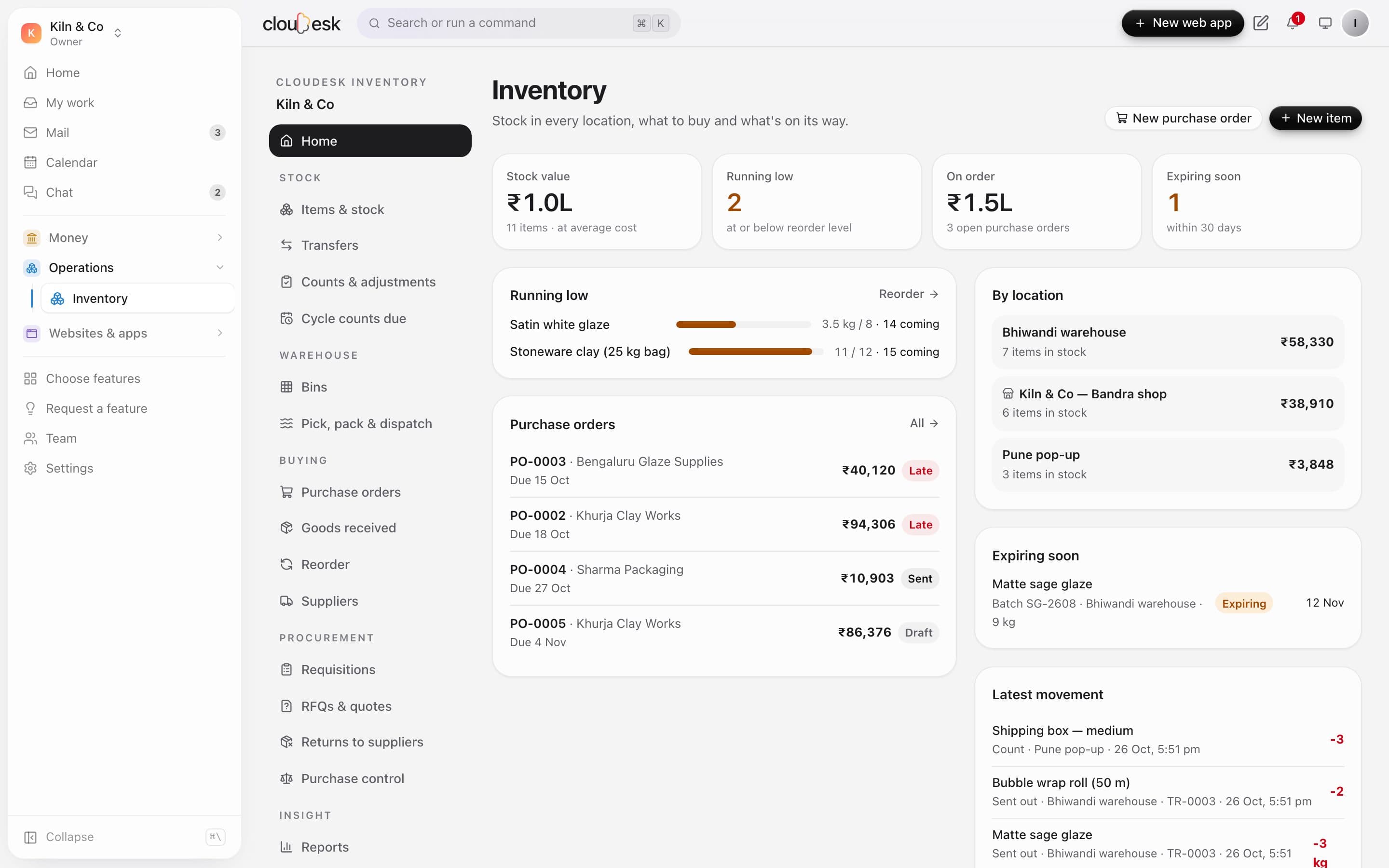
    What your stock is worth, what's running low (with what's already coming), open purchase orders with late ones flagged, batches expiring soon, value by location and the latest movement.

    • Stock value at average cost
    • Low stock against reorder levels
    • Late purchase orders
    • Expiring batches
    The inventory home
  2. 02Items & stock

    Everything you keep, in one list.

    Products you sell, raw materials and packaging side by side — on hand across locations, on order, average cost and value. Filter by category, location, low or out of stock, and export to CSV.

    • Units from pieces to kg and litres
    • HSN and GST rate per item
    • Reorder level and usual supplier
    • CSV export
    Items with stock, on order, cost and value
  3. 03Linked to your store

    One stock number with your shop.

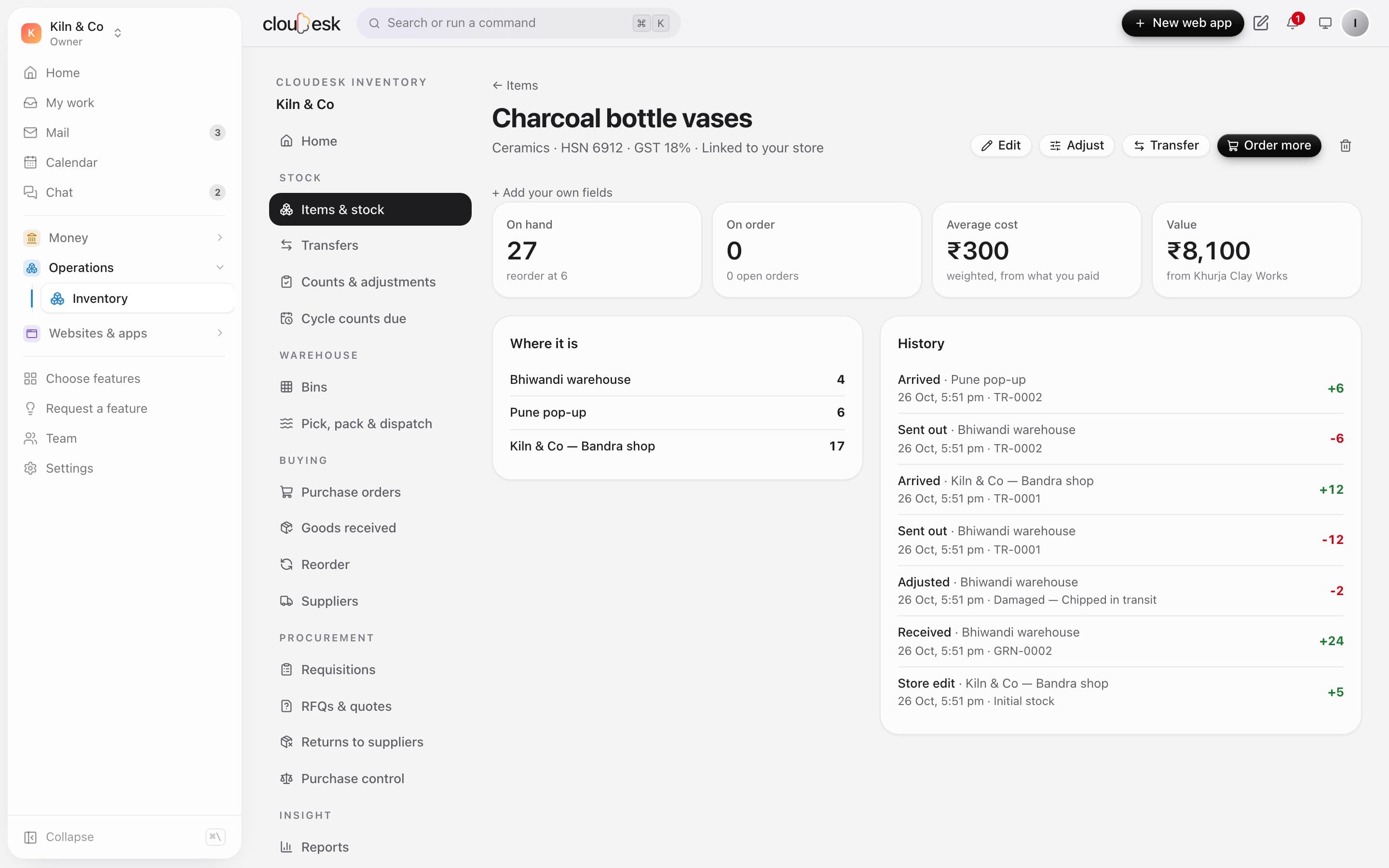
    Bring your store's products in with one click. The shop gets a location whose quantity is the store's own stock, so the website and the POS sell from it as before — and every sale appears on the item's history next to receipts and transfers.

    • No double counting
    • Store sales on the item's history
    • Back-room stock kept separately
    • Transfer to the shop to restock
    A store product's stock by location and its full history
  4. 04Purchase orders

    Order from suppliers, GST worked out.

    Pick a supplier and a delivery location, add lines and the totals split into CGST and SGST — or IGST when the supplier is in another state. Send it by email, or print and save it as a PDF.

    • Inside or across states
    • Late orders flagged
    • Edit until it's received
    • Close a part-delivered order
    A part-received purchase order
  5. 05Goods received

    Receive what actually arrived.

    What's still due is filled in; change it to what came. Batch-tracked items ask for a batch and expiry, the supplier's invoice number is kept, and each item's average cost is re-worked from what you paid.

    • Part deliveries
    • Batch and expiry
    • No over-receiving
    • Receive without an order too
    Receiving the rest of a purchase order with batch and expiry
  6. 06Reorder

    The next orders, drafted for you.

    Everything at or below its reorder level, with what's already on order counted, and a suggested quantity. Choose suppliers and one draft purchase order is made for each.

    • Suggested quantities
    • What's on order counted
    • One draft per supplier
    Items to reorder with suppliers
  7. 07Transfers

    Stock on the road, counted once.

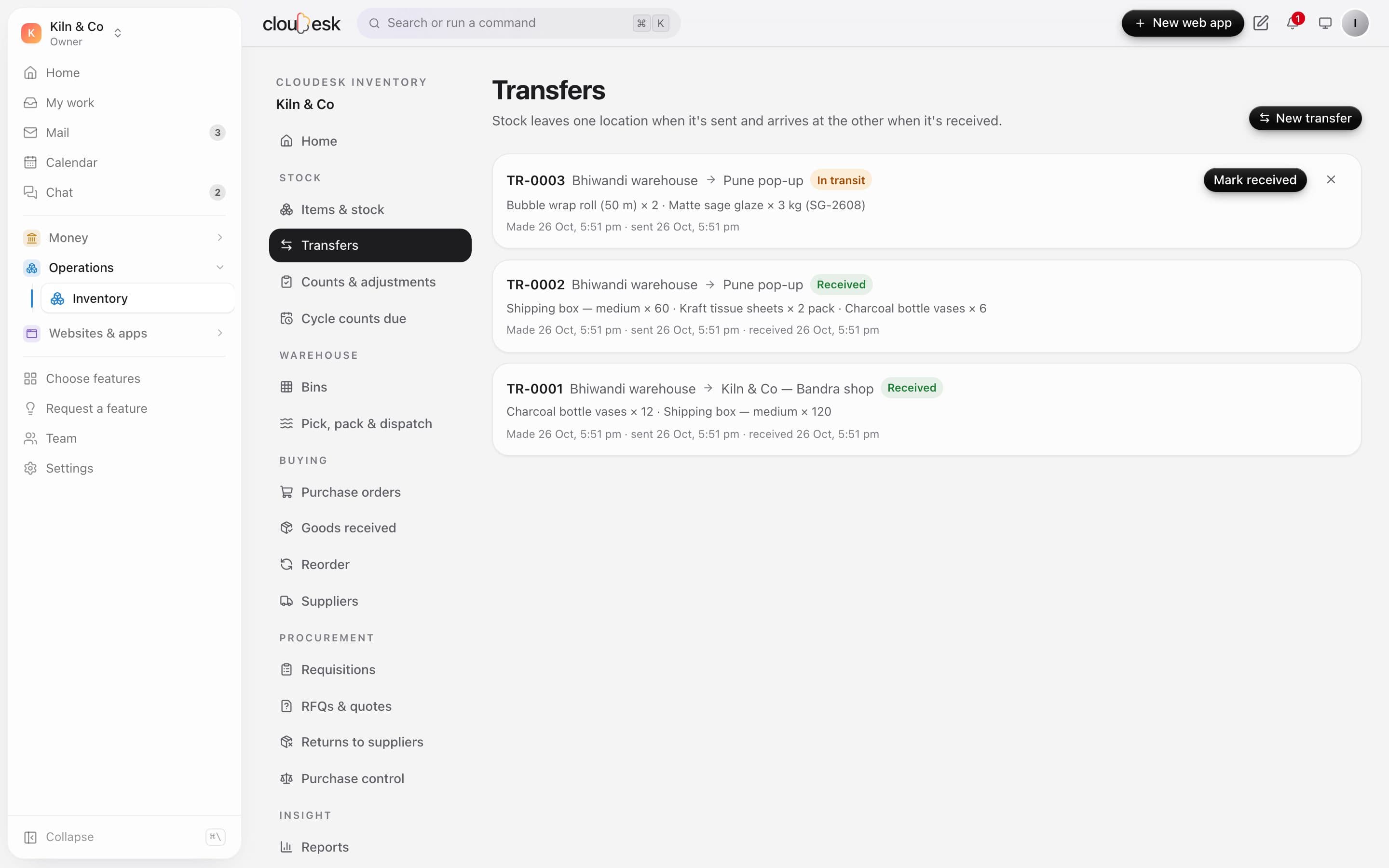
    Send stock from the warehouse to a shop or branch. It leaves when it's sent and arrives when the other end marks it received — batches go oldest-expiry first.

    • In transit between locations
    • Cancel puts it back
    • Restock the store's shelf
    Transfers between locations
  8. 08Counts

    Count a shelf, fix the numbers.

    Enter what's on the shelf and see the difference in units and rupees before you save. Single adjustments — damaged, lost, found, used, opening stock — are kept with their reason.

    • Difference valued before saving
    • Past counts kept
    • Every movement in one ledger
    Counting a location
  9. 09Reports

    Where your money sits.

    Stock value by category, deliveries by month, your top suppliers and stock that hasn't moved in 90 days — plus a full valuation.

    • Valuation at average cost
    • Dead stock
    • Top suppliers
    Inventory reports
  10. 10Documents

    A purchase order your supplier can use.

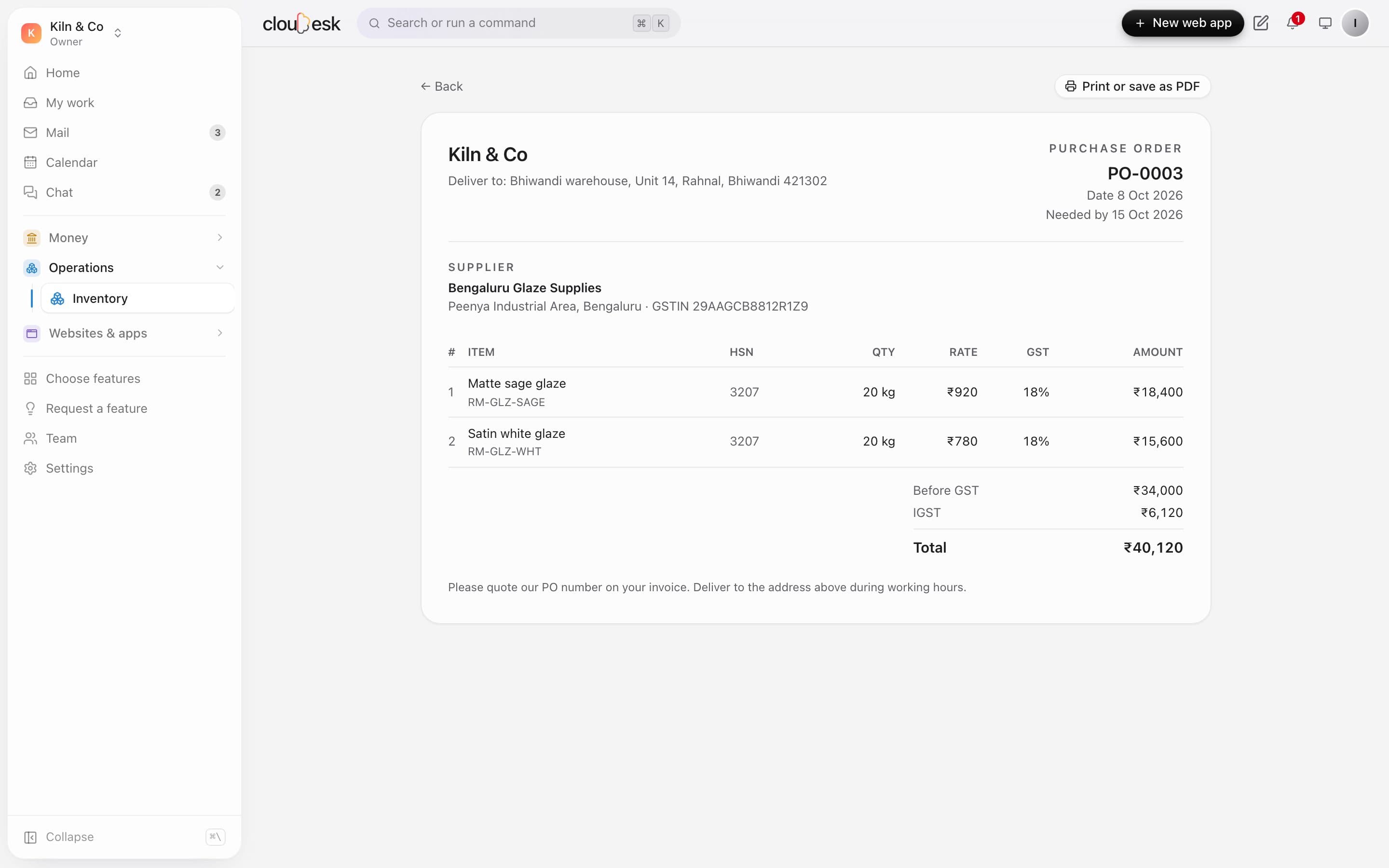
    Clean, printable purchase orders with HSN, GST and your terms — print them, or save them as PDFs and send them on.

    • HSN on every line
    • Your own terms
    • Print or PDF
    A printable purchase order

In detail

What you get with Cloudesk Inventory

Procurement

Requisitions with approval, RFQs with quotes compared side by side and awarded per item, agreed supplier rates, supplier onboarding, inspection on receipt, returns to suppliers with a debit note, a 3-way match of order, receipt and bill, supplier performance and purchase budgets.

Good to know

We'd rather be upfront than surprise you later:

  • Purchase orders are emailed only when your workspace has a mail service and the supplier has an email address; otherwise they're marked sent and you print or share the PDF yourself — the screen says which.
  • Supplier bills and payments aren't tracked here yet: Inventory records what you ordered and received, not what you owe.
  • Stock on a store's own shelf is counted in whole pieces, like the store; batches are kept in your other locations.
  • Recipes and kitchen stock in Horeca stay in Horeca for now — Inventory doesn't deduct ingredients from restaurant orders.
  • There's no barcode-scanner flow for receiving yet; scanning works at the POS.

Questions people ask

Will this change how my online store or POS works?+

No. A linked item's shop quantity is the store's own stock, so selling works exactly as before. Inventory adds other locations, purchasing and history on top.

Can I use it without an online store?+

Yes. Add items by hand — raw materials, packaging, spares — and use locations, purchase orders, receipts and counts on their own.

How is GST on purchases worked out?+

From each line's GST rate. If the supplier's state and the delivery location's state differ, it's IGST; otherwise CGST and SGST split equally. Add both states to get it right.

How do I start with what I already have?+

Use an adjustment with the reason “Opening stock” for each item, or count a location — the count sets stock to what's on the shelf.

Can my staff see stock but not change it?+

Yes. Viewers can see everything but not change it; owners and admins manage locations and settings. A workspace role can also limit someone to just Inventory.

Works beautifully with

Give it a spin — it's free to start.

Next up: Cloudesk Sales orders →

Start free